Outlook add-in
Get an overview of Ketl's Outlook Addin
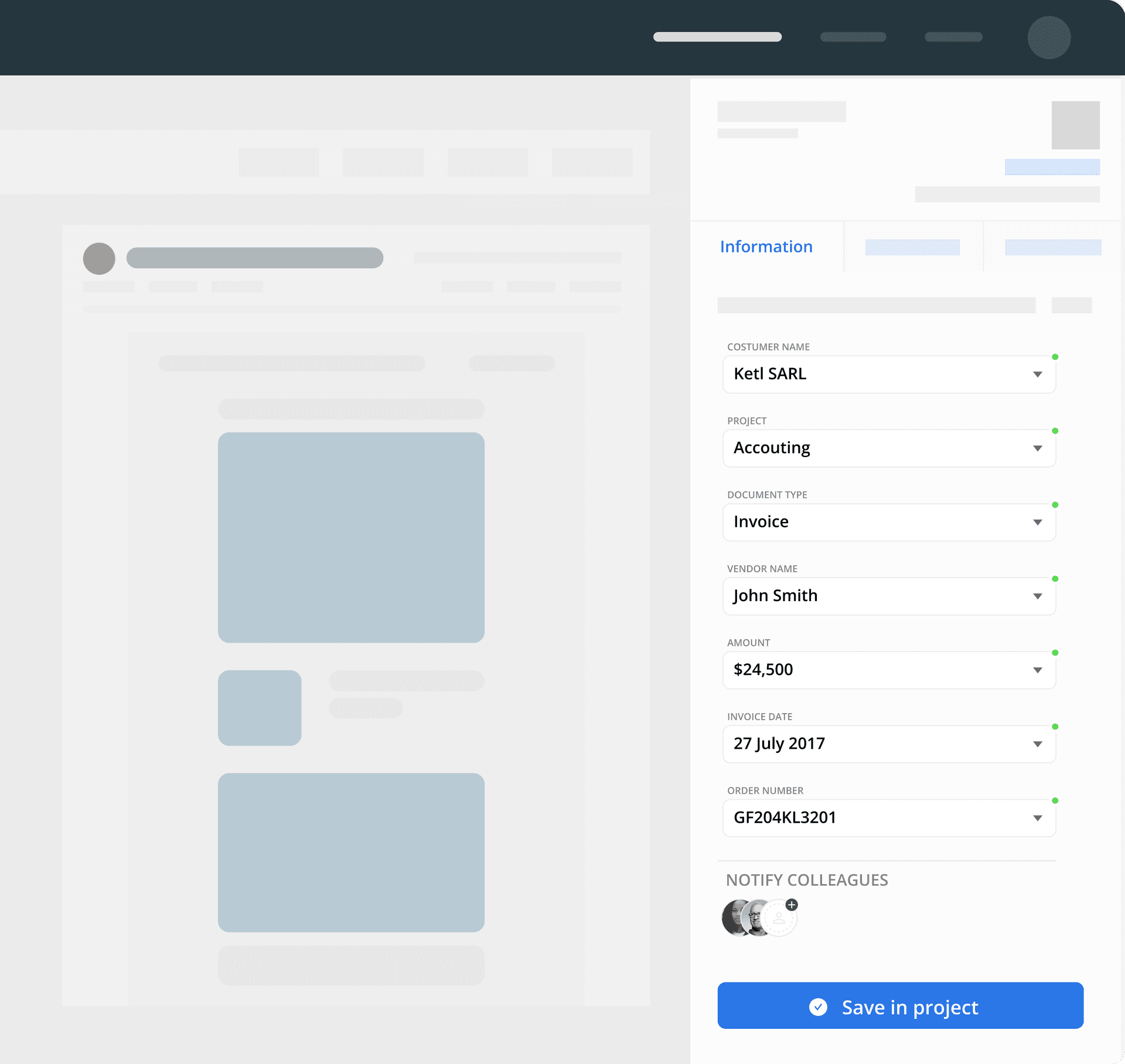
With Ketl's Outlook Addin you can:
- File an e-mail and/or an attachment to Sharepoint
- Create tasks tied to documents and calendar
- Retrieve attachments when writing an e-mail
How to file an attachment
Open the add-in by clicking on the ketl icon located in an opened email:
1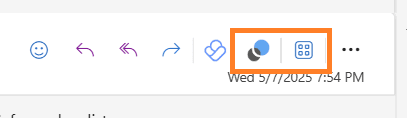
Click on the “Attachments” icon
2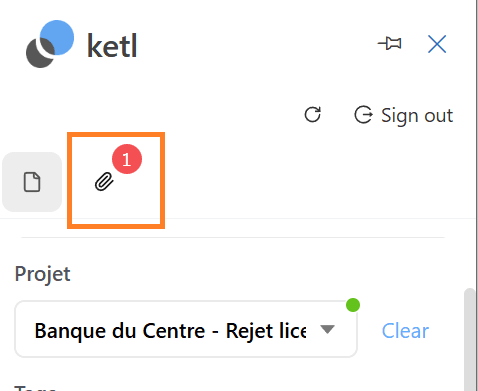
Select the attachment you would like to file
3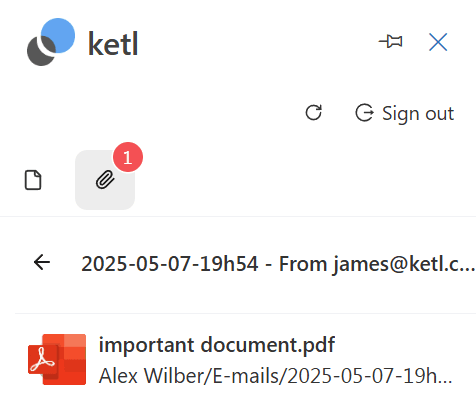
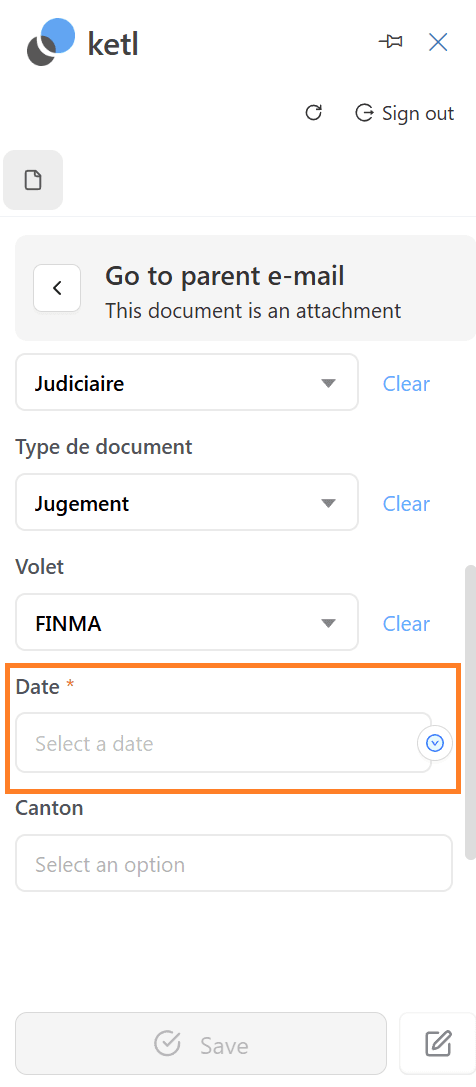
You can now verify or select the information of the attachment. Common fields are:
4- Project
- Document type
- Date
Fields that do have a red star next to them are mandatory and thus necessary to select before you can save the attachment.
If you want to see in which folder structure the attachment will be copied, simply hover above the filename shown at the bottom of the add-in.
3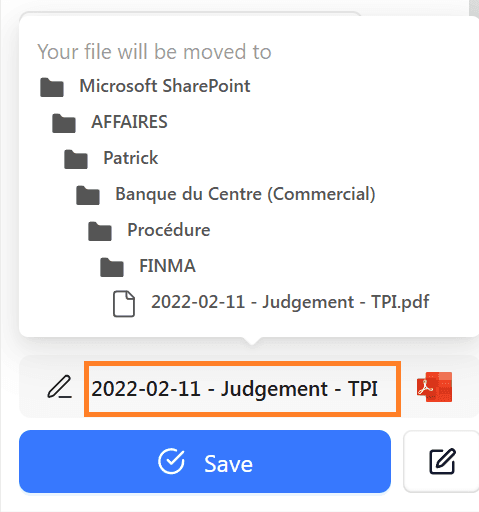 The filename is constructed on the information above by default. You can edit it yourself if you want to modify or add information.
Click on “Save” to file the email to your SharePoint.
3
How to file an e-mail
Open the add-in by clicking on the ketl icon located in an opened email:
1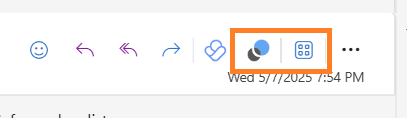 If you do not see the ketl icon, it can be found inside the “Applications” menu that can be opened via the other highlighted button.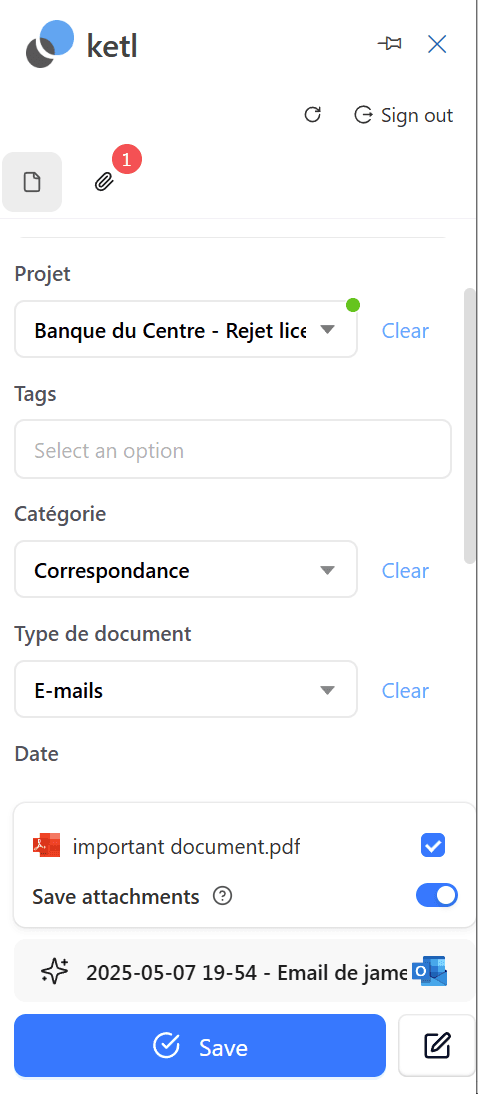
Verify or select the appropriate value in the “Project” dropdown.
2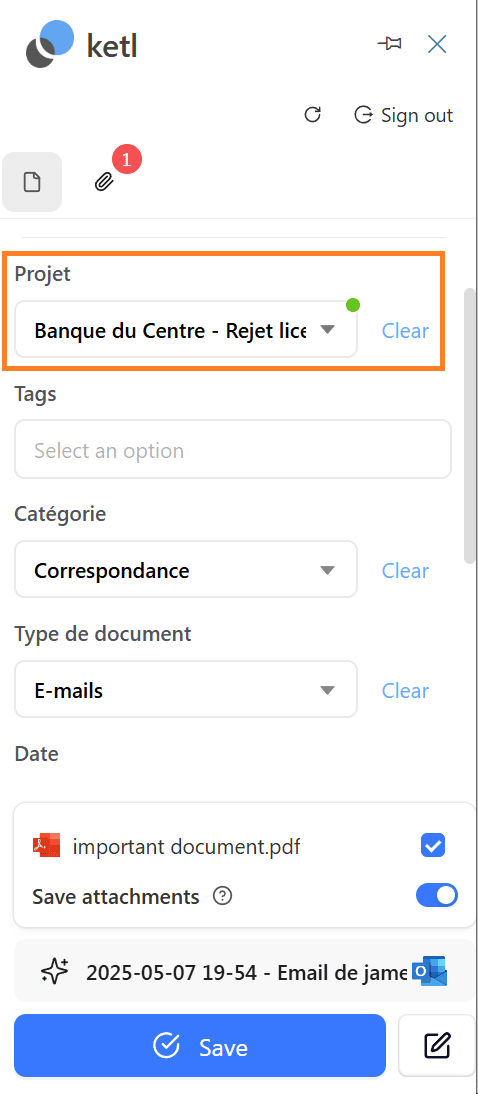
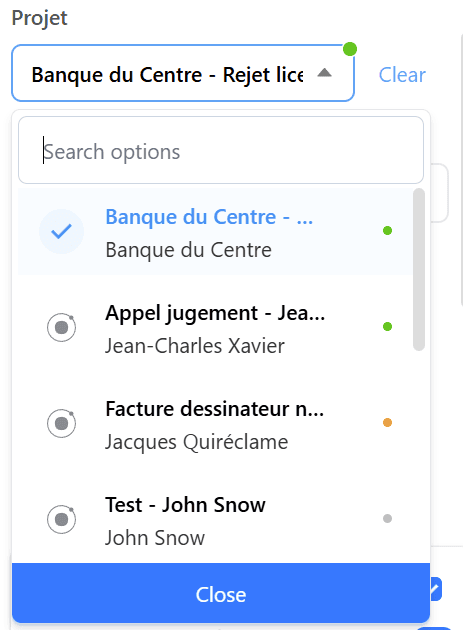 If the value suggested by default is incorrect, do not worry, ketl will gradually improve thanks to your corrections!
You can select which attachments are saved as files. All saved attachments will be stored in a folder of the same name and at the same location as the saved email.
3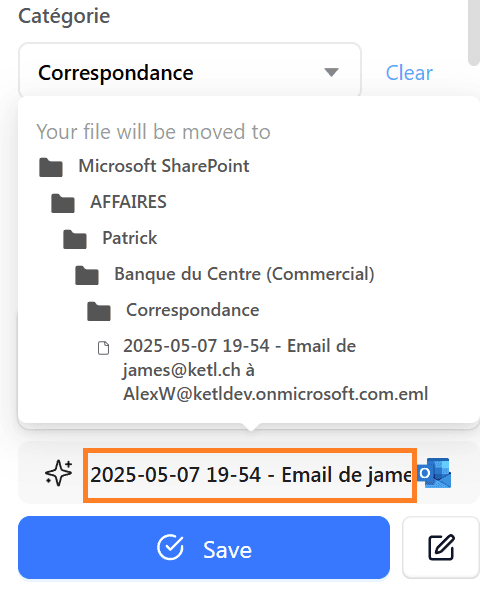
Here is an example:
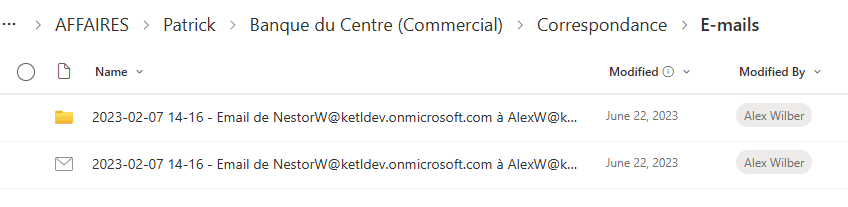
Hover above the filename to verify that everything is according to your liking. The filename is constructed on the information above by default. You can edit it yourself if you want to modify or add information.
4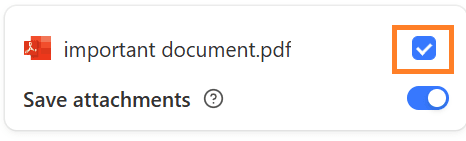
Click on “Save” to file the email to your SharePoint.
5After you have clicked on “Save”, you do not need to wait for the filing to complete. It will continue being copied in the background to spare you some time.Click on “Save” to file the email to your SharePoint.
3
How to retrieve attachments when writing an e-mail
On an email you are currently writing (for example a reply to an email from a client), open the add-in by clicking on the ketl icon located in an opened email. The add-in will be displayed in “Attachments” mode:
1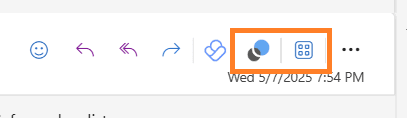
You can then select the Project where the file you are looking for is located.
2You can also type keywords or select a type of document to refine your search Picking a different sorting options can also help you find what you need quickly (default is by filing date)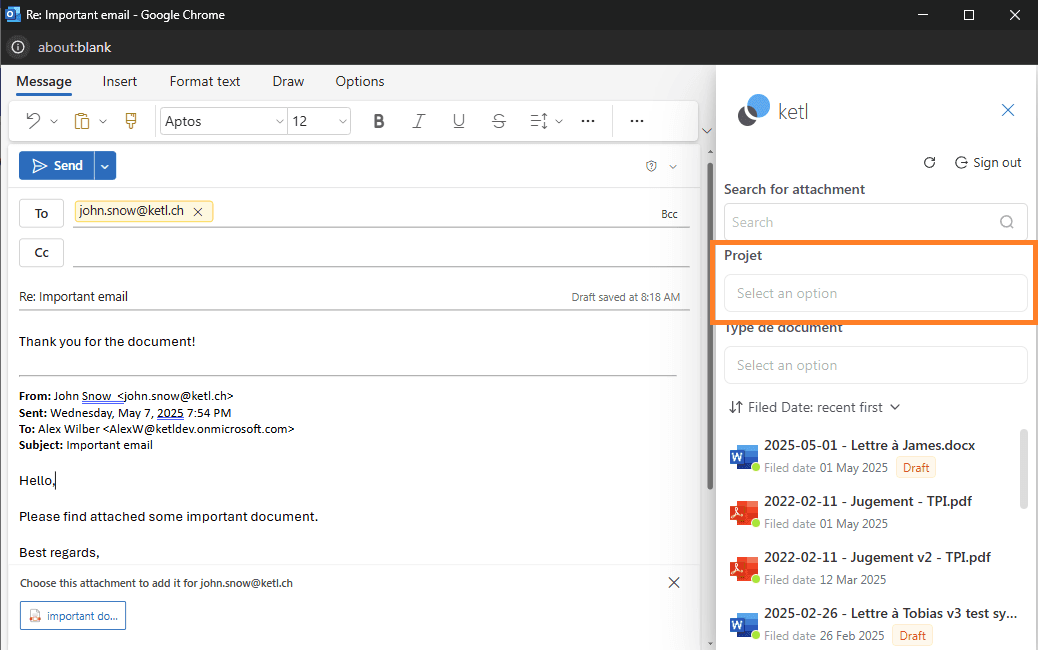
Click on the file to attach it to the current email
3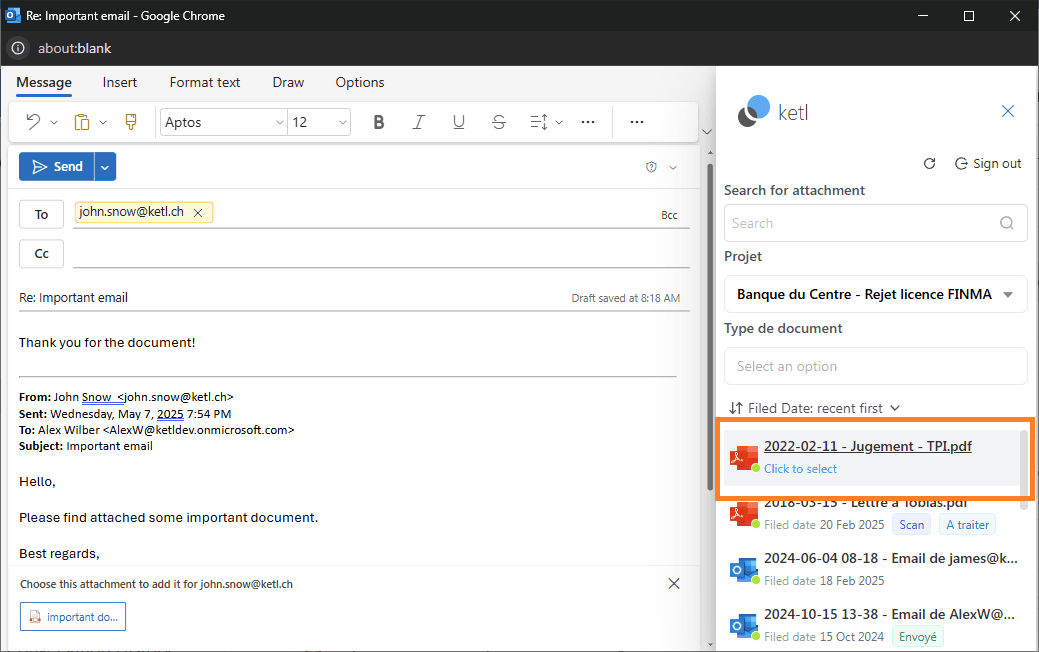
The attachment is now added and you can either send your email or add more attachments.
4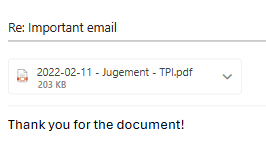
How to file outgoing e-mails
The ketl add-in can also file the e-mails you send, either at the moment you write them or via a reminder that pops up when you click “Send” in Outlook.
See Send & File outgoing e-mails for the full procedure.