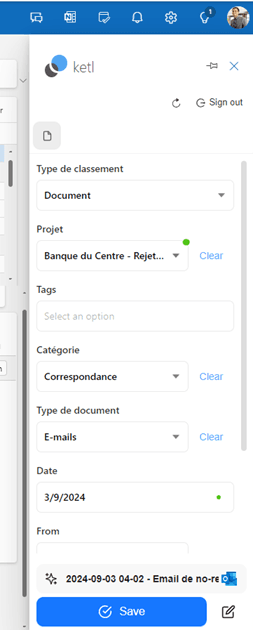
Add an additional email account to ketl
Ketl allows you to connect an unlimited number of email accounts to its platform to manage your emails and attachments.
Correctly connecting your email account to ketl also gives you access to the ketl Outlook add-in. The ketl add-in allows you to categorize emails and attachments directly from Outlook, as well as quickly send attachments to your clients and colleagues.
By default, when you activate your account, your personal email account (linked to the Microsoft account used to log in) will be automatically configured to work with ketl.
When an email account is connected, ketl will periodically process incoming and outgoing emails and attachments. When an email is processed, it is temporarily stored in a directory defined at the time of adding the account.
By default, emails from your personal account are stored in your personal OneDrive. Your emails will only be visible to your colleagues when you choose to categorize them in a storage they have access to.
We will cover 3 situations here:
Prerequisites:
- Have access to the desired email accounts (check with your IT if in doubt)
- Have any required passwords available (especially if you want to add a mailbox linked to an additional Microsoft account)
Add your personal email account
Ketl assumes that users have a named Microsoft account provided by their company. Each account typically has a personal address (e.g., “first.last@company.com”).
This address is automatically connected by ketl when your account is activated.
If you encounter the message “Email setup missing” when opening the ketl add-in, follow these steps:
Go to "Settings"
1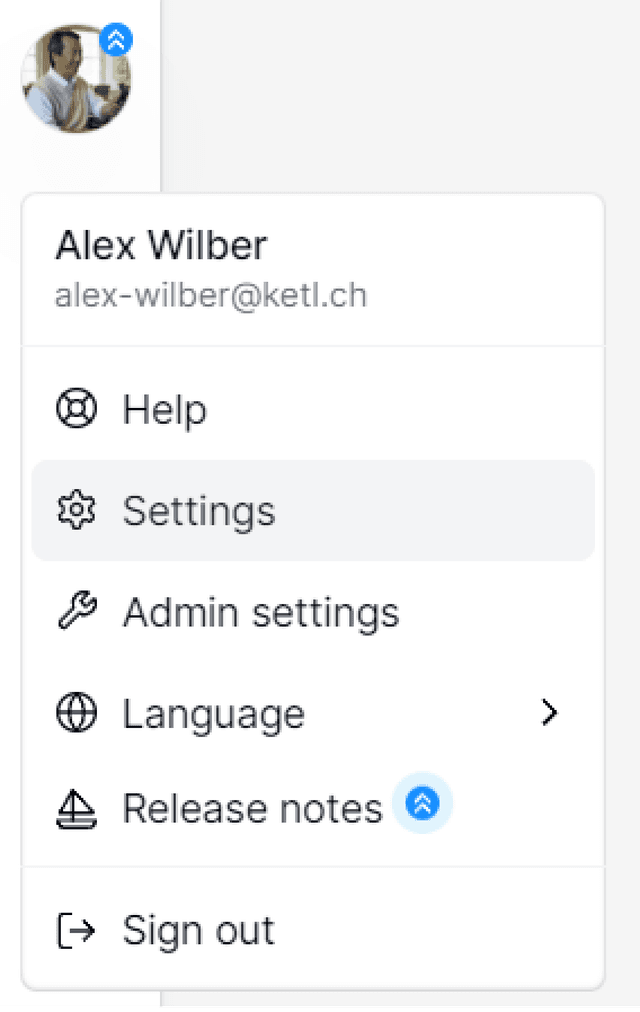
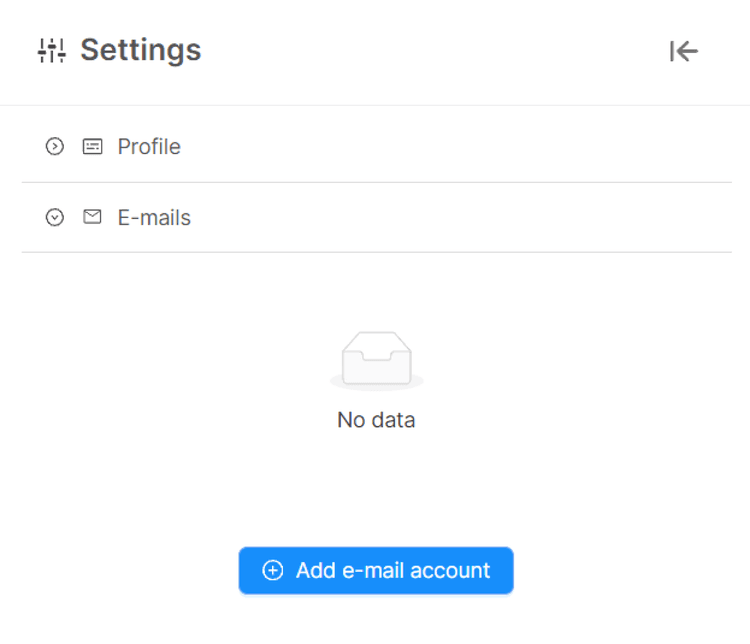
Go to "Emails"
2Verify that your email is not listed. If it is not, click on “Add email account” which will open a pane with a few steps to follow.
Ensure that your Microsoft account is selected and then go to “Select a directory to store your emails”
3A file explorer will open. It allows you to choose where your emails will be temporarily stored by ketl for processing.
- Choose a storage named “OneDrive” (your private space) or “Dokumente” (a synonym sometimes used by Microsoft).
- Create a “New directory” with a name of your choice (“Emails”).
- Confirm by clicking “Select”.
- Then confirm by clicking “Select” at the bottom of the pane.
If you cannot find the corresponding storage → go back and go to the “Storages” section, the list of your storages will display and you should be able to select “OneDrive” or “Dokumente”. If they do not appear → contact your IT support.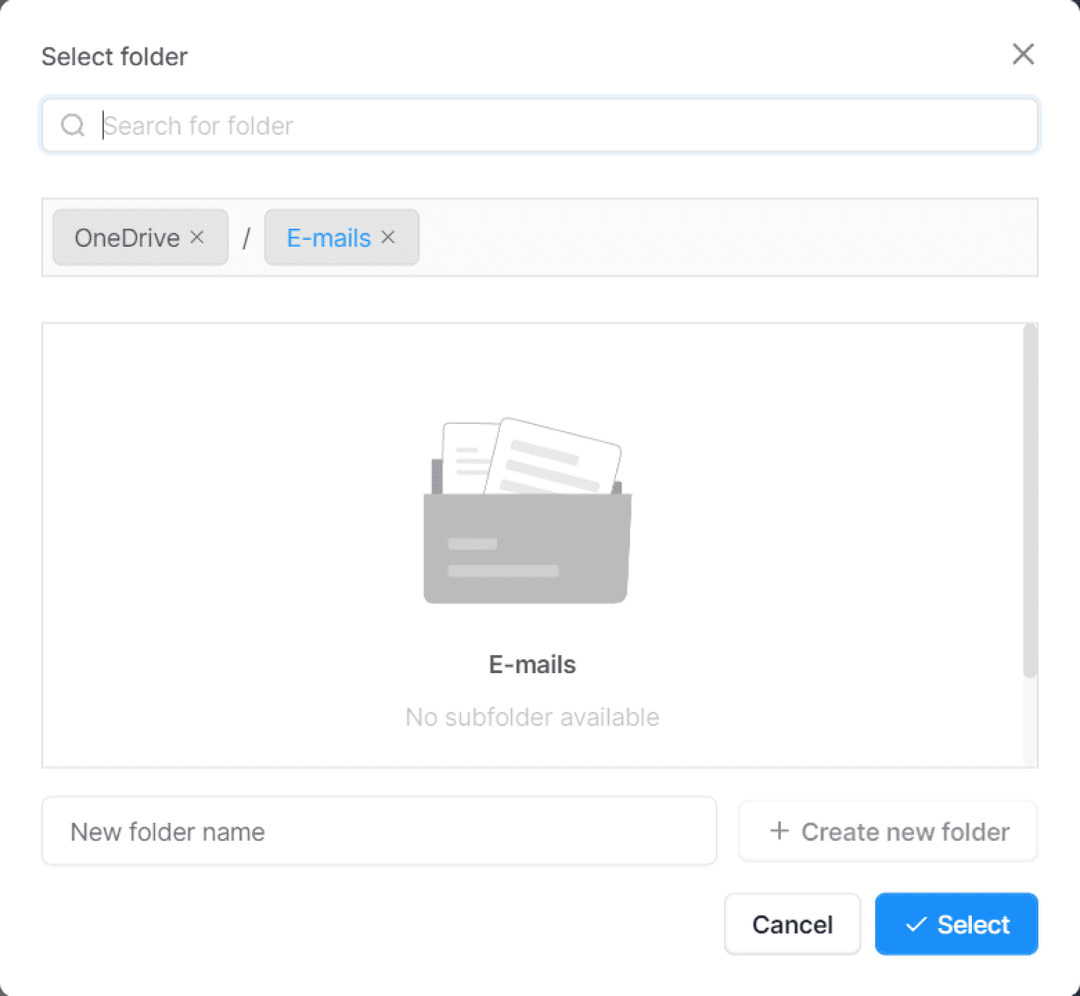
Then confirm by clicking “Confirm” at the bottom of the pane
4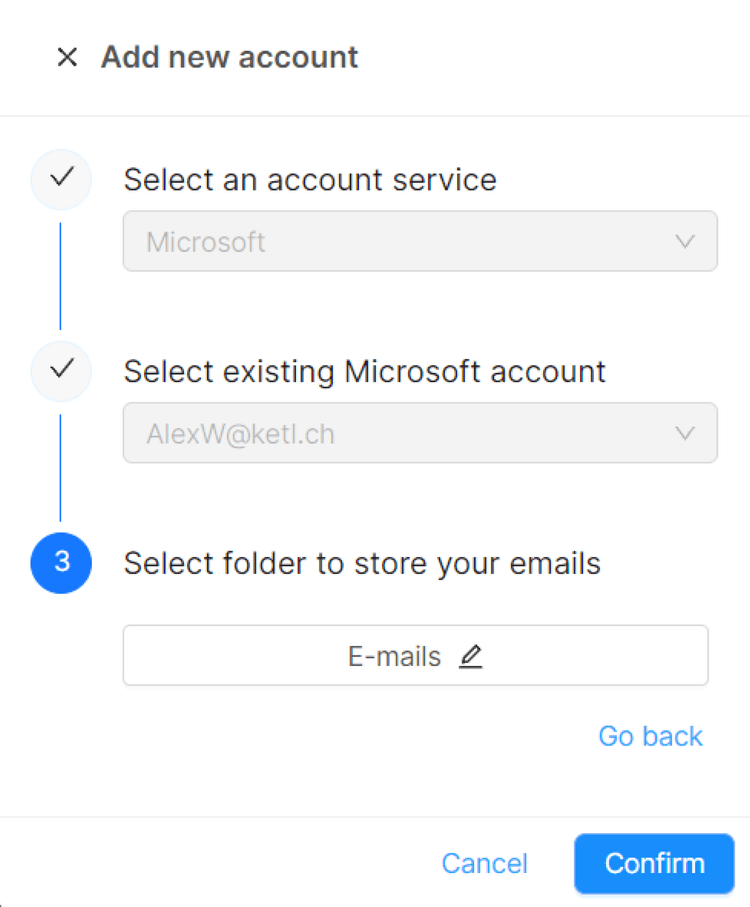
After confirming, you should see your email next to the folder you just created.
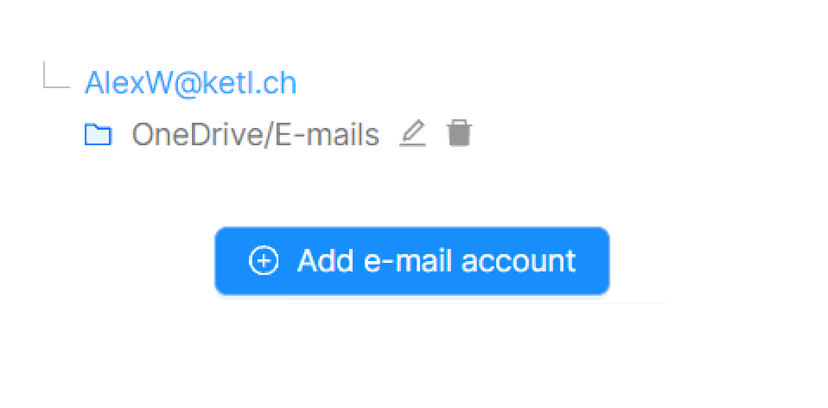
There you go, it's done!
Add a shared mailbox
Go to "Settings"
1Go to "Emails"
2Click on “Back” to return to step 2.
Select the Microsoft account that has access to the shared mailbox.
3Enter the name of the mailbox in the field that appeared just below:
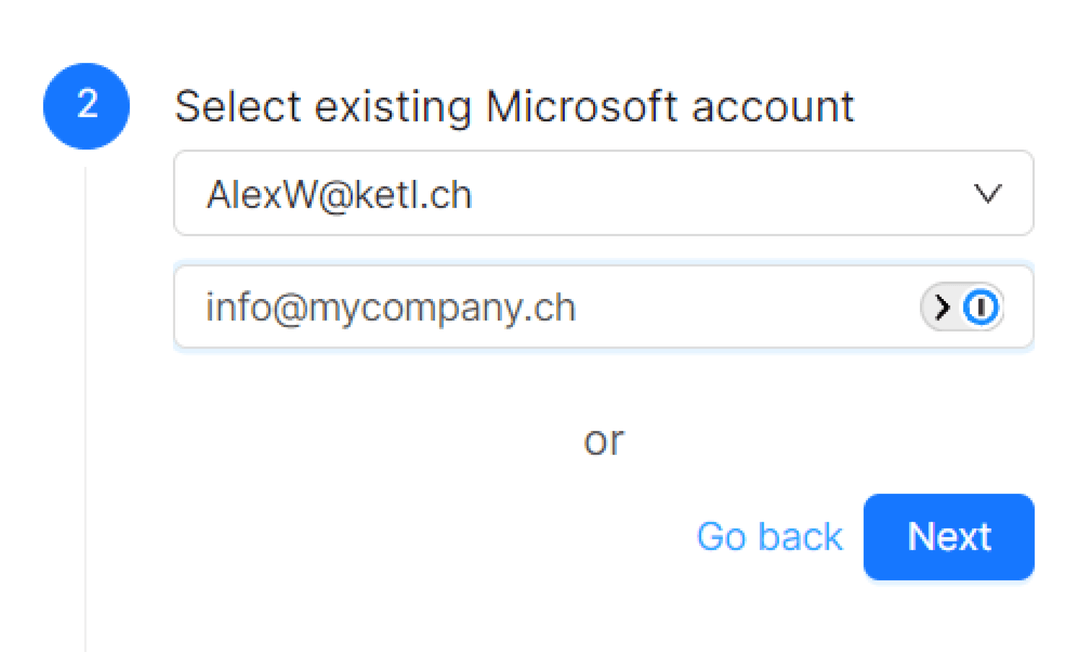
Then confirm by clicking “Confirm” at the bottom of the pane
4Usually, we recommend that all users of a common mailbox choose the same directory (e.g., “COMPANY SITE/emails info/”). This will avoid potential duplicates.After confirming, you should see your email next to the folder you just created.

There you go, it's done!
Add a mailbox from another Microsoft account
In some situations, it might be useful to connect multiple Microsoft accounts to the same ketl account. Here’s how to do it.
Go to Settings, then the “Connections” section
1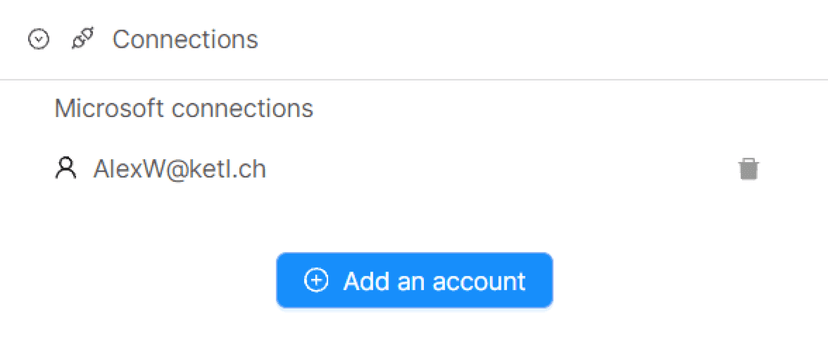
Click on “Add an account”, then choose “Microsoft Business”. Follow Microsoft’s instructions to connect the account.
2Follow the same steps as to add a personal email folder
3If your Outlook already had access to the mailbox linked to the Microsoft account connected here, you should be able to open the ketl add-in.
Open Outlook and click on “Apps”

Click on “Ketl”
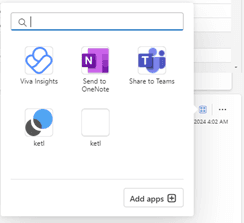
There you go, it should work out of the box.